Edit the screenshot where you took it.
webQsee bundles a full in-browser image editor into the save dialog of every screenshot it captures. Crop, annotate, redact sensitive data, highlight what matters, drop shapes, text and arrows, and the finished image is the one that gets saved, without ever opening an external app.
All features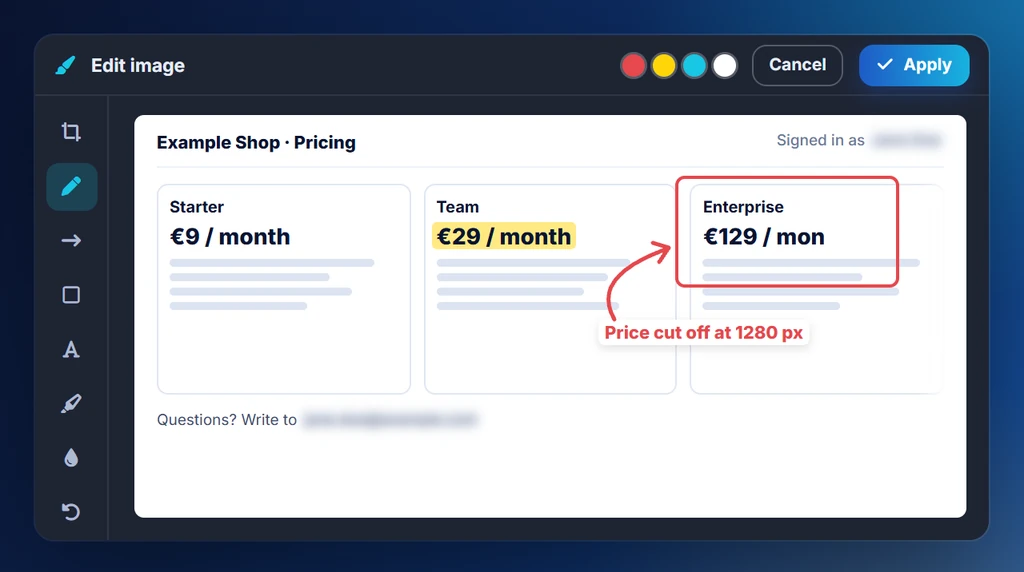
Powered by tui-image-editor.
Built on top of the open-source TOAST UI image editor and wired directly into webQsee's capture workflow. Edit, save, done, and the edited image is what continues down the line.
Crop
Trim down to the relevant area. Fixed ratios, free-form, or numeric input.
Blur sensitive info
Draw blur rectangles over API keys, customer names, internal URLs, anything that shouldn't leave your screen.
Highlight
Translucent yellow strokes to draw the eye exactly where you want it, without obscuring the content underneath.
Shapes & arrows
Rectangles, circles, lines, arrows, the standard kit for pointing at the broken pixel.
Text annotations
Drop in labels, callouts and short explanations. Font size, weight and colour all configurable.
Undo / redo
Mistakes don't survive. Multi-level undo across every operation in the session.
No round-trip through a desktop app.
The whole point of webQsee is to keep evidence in one place. Forcing a screenshot out into Photoshop, then back in, defeats it. The Screenshot Editor lives inside the extension's gallery, opens in a single click, and saves directly back to the same entry.
- Take a screenshot: visible area, full page, or a display.
- The save dialog appears with an Edit button next to it.
- Edit right there, crop, annotate, blur, draw.
- Save. The edited image is what gets filed.
- Then download it, put it in the gallery, or share a link.
Editing happens before the screenshot is filed, which is deliberate: sensitive regions get blurred before anything is stored or uploaded, not after.
Good to know
- Available for every screenshot webQsee takes: visible area, full page, display.
- Also offered for the screenshot inside an Event Snapshot.
- Edits are non-destructive until you press Save.
- Output is a flat PNG, annotations are baked in.
- No external network calls during editing.
The editor opens from the save dialog right after a capture. It is not a general-purpose image editor: existing PNGs from your disk cannot be imported into it.
Stop guessing. Start webQseeing.
Add webQsee to Chrome or Edge in one click. Recording and replay are free, no signup needed. Upgrade when you need AI analyses, cloud sharing, S3 storage and Pro-grade tooling.
Works in Chrome 103+, Edge 103+ and most Chromium-based browsers. Install instructions.