Get webQsee.
Pick your browser. The extension installs in one click, no account, no setup, no card required. Recording and replay are free.
Or skip the install, use view.webqsee.com
Recipients of shared webQsee captures don't need the extension at all. They open the link at view.webqsee.com and get the full webQsee analyzer right in their browser tab, same UI, same grids, same replay.
Open view.webqsee.com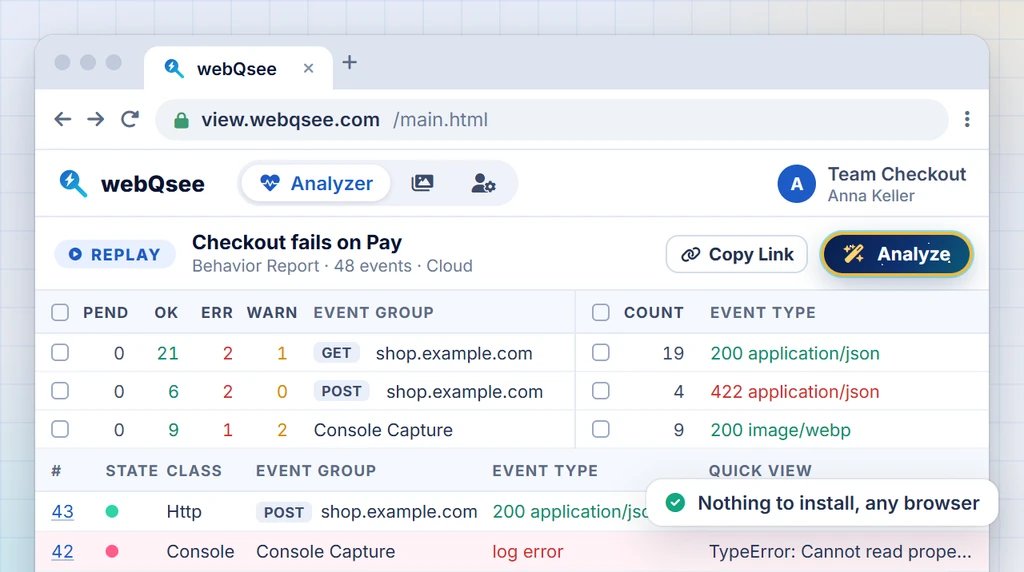
First four things to try.
Pin the extension to your toolbar
Open the puzzle icon in your browser's toolbar, find webQsee and click the pin. The webQsee icon now lives one click away.
Sanity check: You should see the webQsee bolt icon in the toolbar, next to the puzzle icon.Open the popup on any web page
Navigate to any website, then click the webQsee toolbar icon. The popup opens on Capture this tab with Video, Screenshot and Dashcam side by side, and below them Live Analyzer and Workplace.
Sanity check: The popup shows a "Video" tile first, with "Behavior Report" underneath.Take a first Event Snapshot
Click Screenshot in the popup and let it also capture network traffic and browser logs, which is what turns a plain screenshot into an Event Snapshot. Finalize it, and the save dialog appears with the result.
Sanity check: The save dialog shows a thumbnail of your screenshot plus a count of the captured events, and offers to edit, download, save to the gallery or create a link.Ask the recording what went wrong
Press Analyze on the capture you just made, pick Quick analysis and ask in your own words. webQsee AI answers with nothing to set up, and a free account gets five analyses to start with; or connect your own model: your Anthropic key or any OpenAI-compatible endpoint, including one running on your own machine. Every finding cites the analyzer rows it rests on, so you can check it. See how the AI analysis works.
Want an agent to dig through the whole recording? Deep Inspection runs one on your own machine and needs the webQsee helper.
Sanity check: The answer comes back as findings, and at least one carries an evidence chip with an event number that opens the analyzer at that row.
It didn't show up?
The toolbar icon isn't visible
Open the puzzle icon → find webQsee → click the pin. The icon must be pinned to appear directly on the toolbar.
Capture menu items are greyed out
webQsee uses the chrome.debugger API. Make sure no other DevTools / debugger session is already attached to the tab, close DevTools first, then click the menu item again.
Incognito / In-Private windows
Extensions are off by default in private windows. Go to chrome://extensions, find webQsee, click Details, enable Allow in Incognito.
Enterprise managed Chrome
If your IT department restricts extension installs, give them our publisher details (Chrome ID gamdpfnfkjknkimfbboonmgdfnondfme) so they can allowlist webQsee.
Still stuck? Drop us a line, we usually reply within two business days.
Stop guessing. Start webQseeing.
Add webQsee to Chrome or Edge in one click. Recording and replay are free, no signup needed. Upgrade when you need AI analyses, cloud sharing, S3 storage and Pro-grade tooling.
Works in Chrome 103+, Edge 103+ and most Chromium-based browsers. Install instructions.