Ask a recording what went wrong.
A webQsee recording already holds the video, the network traffic, the console output and the state of every event. The AI analysis reads all of it and answers in your own words, citing the exact rows each finding rests on. Those rows are in the analyzer, so you can check the answer instead of trusting it. Since 9.1 a report also records what you did on the page and what the page did in return, so an answer can say "the button went disabled and an error toast appeared after the second click" and cite that step. Use webQsee AI and there is nothing to configure at all, or bring your own model or agent and keep webQsee out of the middle entirely. Either way there is no per-analysis fee: your plan sets how many analyses a month you run, and a free account gets ten once - and five on webQsee AI itself are on the house, so you can see what the hosted answer looks like before deciding anything.
Read the tutorial What it costs Which agents work with it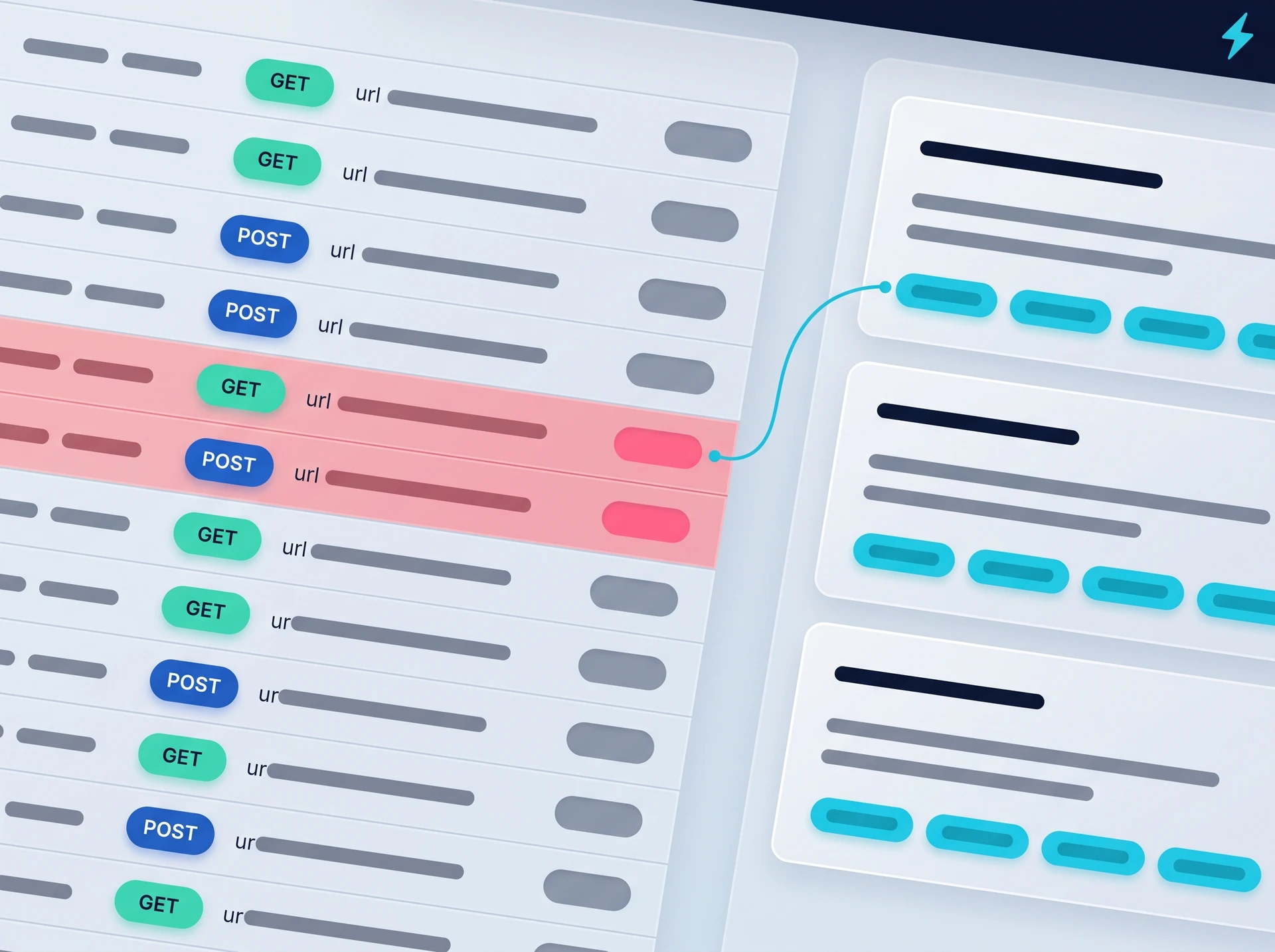
Available now in the browser, and in the extension this autumn.
The AI analysis, the three webQsee AI strengths, Deep Inspection and the new plans are live today in webQsee web at view.webqsee.com: open a recording there, analyse it, and buy a plan or a booster if you want one. The Chrome and Edge extensions are in review and follow this autumn. Your recordings, your gallery and your account are the same in both, so nothing you do now has to be done again.
Findings that name their evidence.
A recording is not handed over as a wall of text. It is turned into one canonical model first: every request with its timing and its body, every console line, the page each event belongs to, the video offset of each moment, in the same numbering the analyzer shows on screen.
So when a finding says event #214, you click the evidence chip and land on row 214. That is the whole point: an answer you can audit in two seconds is worth more than a confident summary you have to take on faith.
- Every finding carries evidence chips that jump to the row
- A coverage box says what was left out, and why
- The conditions are stored with the answer: which model, which rules, whether masking was on
- Works on Behavior Reports and Event Snapshots alike
Questions it is built for
- "The Add to cart button did nothing at 0:14. What actually happened?"
- "Why does the checkout return 500 here but not in the other recording?"
- "Which request is the slow one, and what is it waiting for?"
- "Is this a front-end bug or did the API answer wrongly?"
- "Walk me through what the user did before the error."
One answers "what". The other answers "why".
Quick analysis
A budgeted excerpt of the recording goes to a model and comes back as an answer. No helper, no agent, one call, seconds. webQsee picks the highest-scoring moments, some response bodies and a few video frames, and it says out loud what it had to leave out. Use webQsee AI and there is nothing to set up first; bring your own model or agent and nothing passes through us.
- webQsee AI: no key, no endpoint, no model to choose - 5 free to try, then included in the paid plans
- Or any OpenAI-compatible endpoint, including a model on your own machine
- Your API key stays in the extension's own storage
- Ask follow-up questions in the same conversation
Deep Inspection Pro, or any BYO AI booster
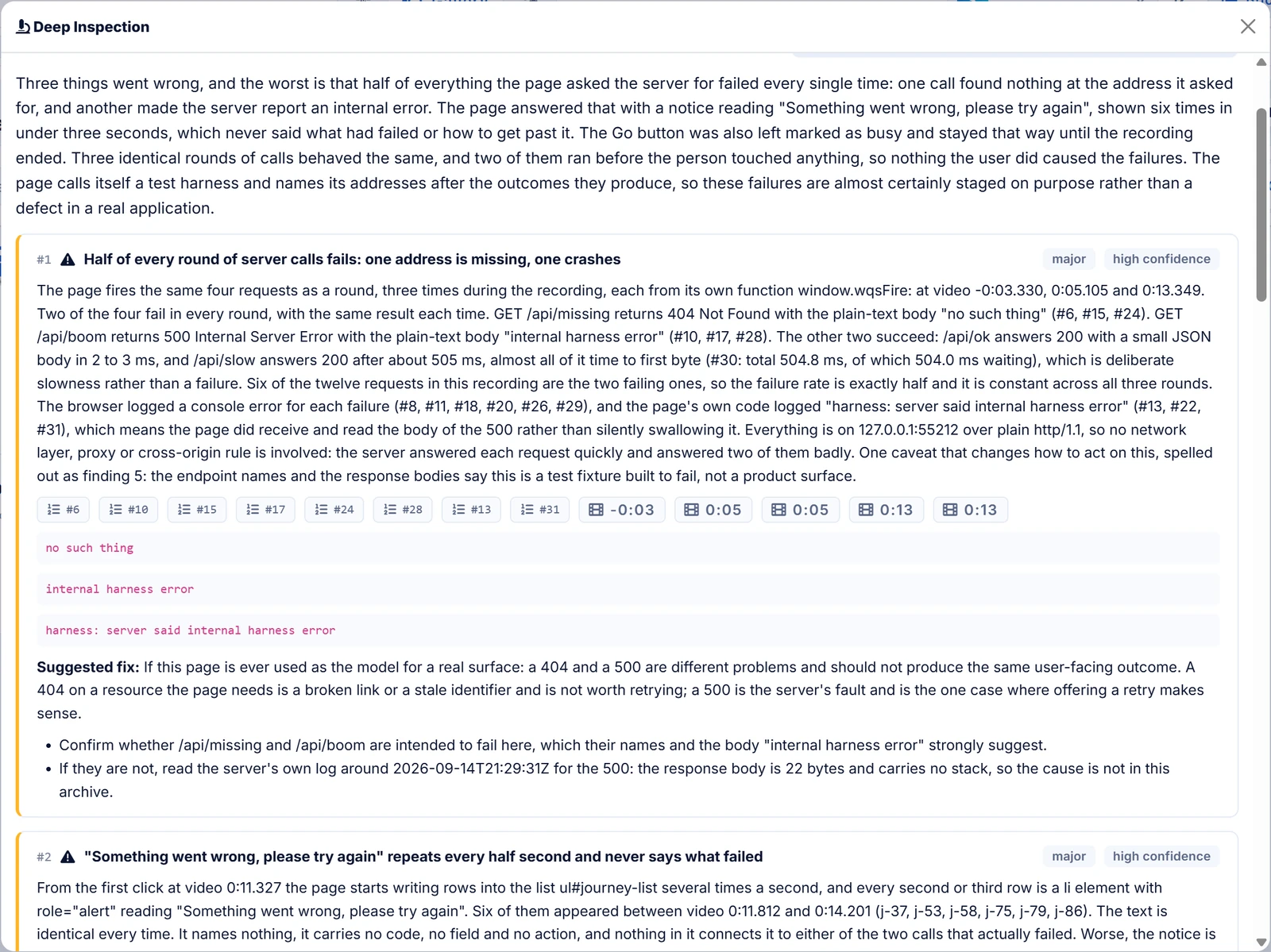
An agent starts on your own machine with the whole recording available. It reads, filters, searches response bodies, pulls the video frames it wants, follows the evidence where it leads, and with a project mapped it reads the source code behind the behaviour. Slower and more expensive, and it answers questions the excerpt cannot.
- Three surfaces: in the webQsee window, in a terminal mirrored there, or in a terminal alone
- Uses the agent you already have installed
- Map a project and it joins the behaviour to the code that causes it
Rule of thumb
Start with the quick analysis. If its answer is right but shallow, run Deep Inspection on the same recording and ask it the follow-up. Both are reachable from the same Analyze action: on the gallery card, on the gallery row, in the analyzer's toolbar, and in the save dialog straight after a capture.
Bring your own, or let us handle it.
BYO AI and webQsee is not in the middle: the recording goes straight from your browser to the endpoint you configured, or Deep Inspection starts the agent you already use. What that costs is between you and whoever runs the model. Point it at a model on your own machine and the recording does not leave the device at all, and the same local-first posture as the rest of webQsee.
Or use webQsee AI, where there is nothing to configure and no third party for you to sign up with. The excerpt goes to us and is answered by a model we pay for. Those analyses come out of your plan, in smaller numbers than the bring-your-own ones, because that model bill is ours rather than yours.
It comes in three strengths, and you pick one per analysis on the cards at the top of the analysis settings. Standard is included in your plan every month and handles most recordings on its own. Smart is a stronger model for the same question, and Genius the largest we host; both are bought as boosters, on any plan. When an answer did not settle it, the panel offers to re-ask the same question one strength up.
Neither way carries a per-analysis fee. What your plan sets is how many analyses you run, because the work around the model is ours: the canonical model, the moment scoring, the coverage arithmetic, the evidence chips, the stored answer. With BYO AI that is ten on the free plan, once rather than every month, then sixty a month on Pro, three hundred and sixty a month shared across the whole team on a Studio, and unlimited on Enterprise. On webQsee AI Standard the free plan gets five analyses once rather than a monthly number, because there the model bill is ours; after those it is a plan or a booster. An account is needed because that is what the count is kept against.
All the numbers, side by side What it sends, and whereCredential masking
A recording contains your application's real traffic, tokens and cookies included. Masking happens on the way out, so the archive on disk is never modified and turning it on does not cost you a re-recording.
- On by default for a cloud destination, off for a model on your own machine, switchable either way
- Values are masked, names are not. "No token was sent" and "a token was sent and rejected" stay different findings on a 401
- The model is told masking is on, so it reads
<<redacted>>as a value that was there, not as one that was missing
Hosts, IP addresses, request ids, hashes and header names stay readable on purpose: they are analysis material, and masking them would cost the answer without protecting anything.
Two more things it does that a chat window cannot.
Compare the run that works with the one that does not
Select two recordings and ask what is different. The comparison matches across them and reports what changed, with the caveats first: a difference between two recordings is often about how they were recorded rather than about the bug, and the analysis says so before it shows you a table.
Compare two recordingsReach the recordings from your own agent
The webQsee helper is an MCP server. Point the agent you already run in your project at it and it can list, open and search recordings itself, from the local gallery, from an open webQsee window or from your cloud gallery. It can also wait: ask it to watch for a fresh recording, then reproduce the bug in the browser and it picks the artefact up.
Use your own agentOne file. No Node, no Python, no package manager.
Deep Inspection and the MCP route both need a small companion program on your machine. It ships as a single file that carries its own runtime, installs inside your own user account without administrator rights, and does nothing until a webQsee window or an agent asks it to.
The quick analysis does not need it at all.
Download the helper Read the install guide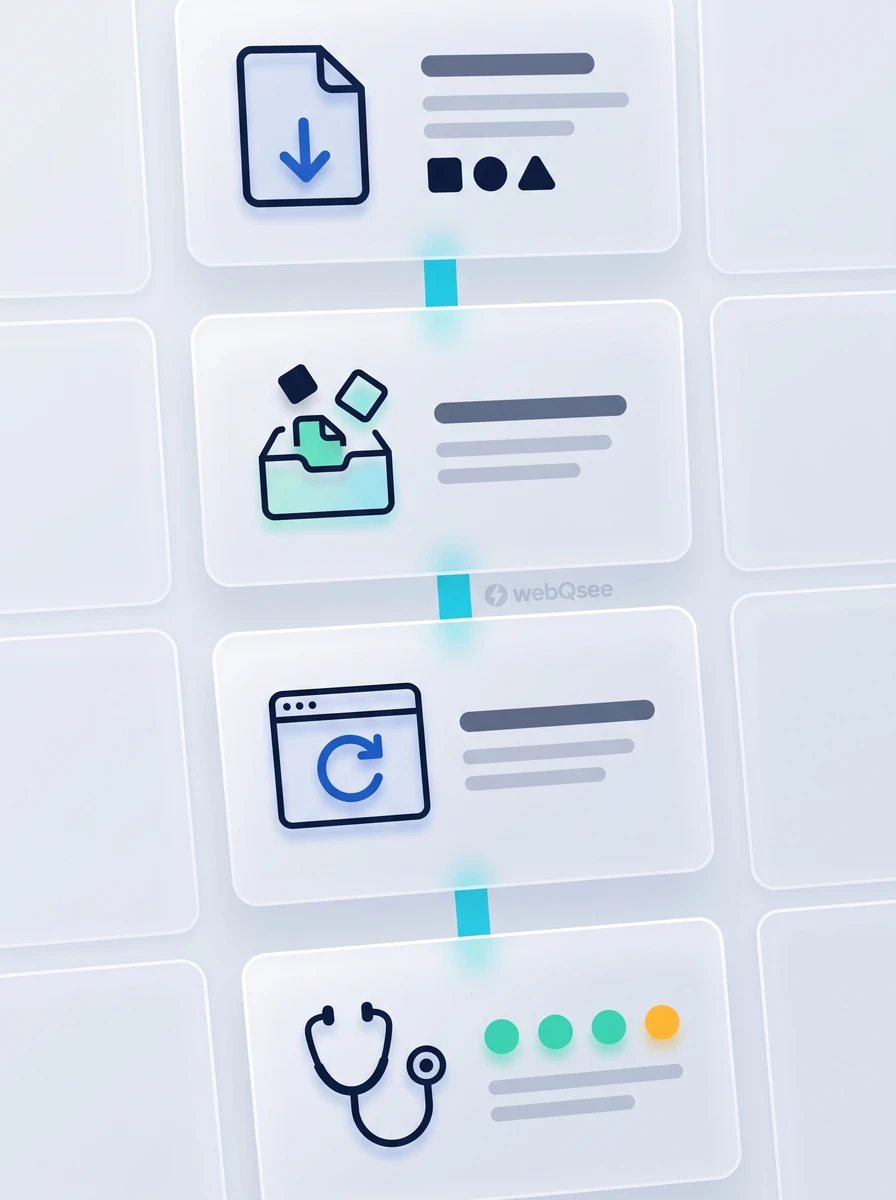
What the analysis reads.
Stop guessing. Start webQseeing.
Add webQsee to Chrome or Edge in one click. Recording and replay are free, no signup needed. Upgrade when you need AI analyses, cloud sharing, S3 storage and Pro-grade tooling.
Works in Chrome 103+, Edge 103+ and most Chromium-based browsers. Install instructions.