Install the webQsee helper
One file. It carries its own runtime, so there is nothing to install first, and it writes only inside your own user account. You need it for Deep Inspection; the quick analysis works without it.
Estimated time: 10 min · Last reviewed: 2026-09 · Difficulty: Easy
Available now in the browser, and in the extension this autumn.
The AI analysis, the three webQsee AI strengths, Deep Inspection and the new plans are live today in webQsee web at view.webqsee.com: open a recording there, analyse it, and buy a plan or a booster if you want one. The Chrome and Edge extensions are in review and follow this autumn. Your recordings, your gallery and your account are the same in both, so nothing you do now has to be done again.
Before you start
- Either webQsee installed in Chrome or Edge, get it here – or an account at view.webqsee.com, which is the one that exists today. Both are covered below; where the two differ, the step says so.
- Permission to run a downloaded program on your machine
- Nothing else. No Node, no Python, no package manager
Pick the right download
Every release lives on the helper download page, which reads the same release manifest wqs-helper update does and always offers the current version. Pick the file for your machine; each archive contains the binary, the installer scripts, the documentation and a SHA256SUMS file.
| Your machine | File |
|---|---|
| Windows on an Intel or AMD processor | wqs-helper-<version>-win32-x64.zip |
| Windows on an ARM processor | wqs-helper-<version>-win32-arm64.zip |
| macOS with Apple silicon (M1 and later) | wqs-helper-<version>-darwin-arm64.tar.gz |
| macOS with an Intel processor | wqs-helper-<version>-darwin-x64.tar.gz |
| Linux, 64-bit Intel or AMD | wqs-helper-<version>-linux-x64.tar.gz |
| Linux, 64-bit ARM | wqs-helper-<version>-linux-arm64.tar.gz |
The file names carry their version, so an older download keeps working and its link never breaks. release-manifest.json in the same directory is what wqs-helper update reads; you never need to open it by hand.
Not sure which processor you have?
- Windows: Settings, System, About, "System type".
- macOS: Apple menu, About This Mac. "Apple M..." is arm64, "Intel" is x64.
- Linux:
uname -m.x86_64is x64,aarch64is arm64.
SHA256SUMS file.Unpack and run the installer
Windows
Right-click the
.zip, Extract All, then double-clickinstall.cmdin the extracted folder. A console window opens, does the work and waits for a key.Windows will stop you first with Windows protected your PC, and macOS with cannot be opened because it is from an unidentified developer. That is expected, it is not a sign that something is wrong with the download, and When the system refuses to run the download further down says what to click.
macOS and Linux
tar -xzf wqs-helper-<version>-<target>.tar.gz
cd wqs-helper-<version>-<target>
./install.sh
What the installer does, and it prints each step
- copies the binary into your user account (
%LOCALAPPDATA%\webQsee\binon Windows,~/.local/binelsewhere); - puts that directory on your
PATHif it is not there already; - registers the helper with Chrome and Edge so the extension can reach it;
- prints the token that web mode uses. Copy it now if you plan to use view.webqsee.com, or read it back at any time with
wqs-helper token.
Sanity check: the installer ends without an error and names the directory it copied the binary into.- copies the binary into your user account (
Restart the browser
This one is not optional and it is the step people skip. The browser reads the registration when it starts, so until you restart it, the extension will keep saying the helper is not running even though it is.
Sanity check: fully quit the browser, including any background instance, and open it again.
Check it
Open a new terminal, so it picks up the changed PATH:
wqs-helper doctorIt reports what it found: which browsers it is registered with, whether an agent is on the PATH, whether ffmpeg is available, where the cache lives and how big it is. Anything it is unhappy about it says in one line, with what to do about it.
- In the extension press Analyze on any recording. The sheet says "The webQsee helper is running" with a version number, and Deep Inspection is no longer greyed out.
- In a browser tab there is nothing to check yet: nothing has started the helper, and view.webqsee.com cannot see it until you start it and paste the token. That is the next section, and it ends with its own check.
Connect it to webQsee in a browser tab
Skip this if you only use the extension: there, Chrome vouches for webQsee through the registration the installer wrote, and there is no token to paste. In view.webqsee.com there is, because a web page cannot be registered with your operating system and has no way to discover a program running on your machine. It authenticates with the helper's token instead, and you paste that once.
Start the helper
wqs-helper startThe extension starts the helper by itself whenever it needs it; a web page cannot start a program on your computer, so here you do it once. It keeps running in the background until
wqs-helper stopor the next reboot, and starting it again when one is already running does nothing.Read the token
wqs-helper tokenOne line. The installer printed the same value when it ran, so if that window is still open you already have it.
wqs-helper token --rotateissues a new one and invalidates the old, which is what to do if it ever ends up somewhere it should not.Paste it into webQsee web
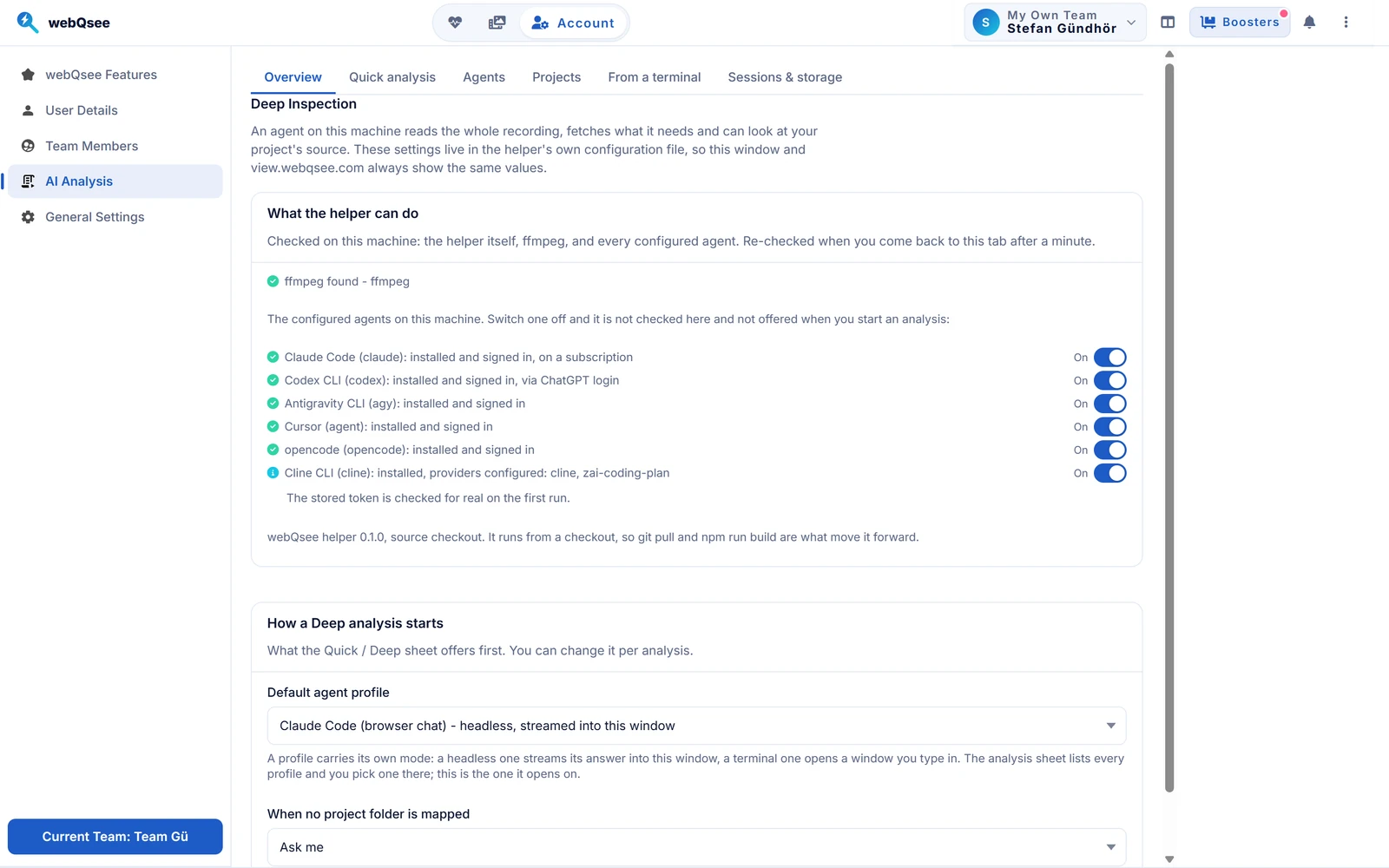
Open view.webqsee.com, go to your user area and open the AI Analysis tab. Its first sub-tab, Overview, has a section Connecting to the helper with a Token field and an Address field. Paste the token; leave the address empty.
Leave the address empty unless you moved the helper. Empty means "look on the usual ports", and that is what you want on the machine the helper is running on.Save and connect
The panel reports what it found: the helper's version, which agents are configured and whether each one is ready. That report is the confirmation: there is no separate "connected" light to look for.
Your browser then asks whether the site may access other apps and services on this device. Allow it. The helper runs on this computer, and that permission is how the page reaches it; the page asks nothing before you press Save and connect, and it only contacts the helper's own ports on 127.0.0.1. Clicked Block by mistake? No page can bring the question back by itself: click the icon left of the address, switch on Apps on device (older Chrome versions: Local network access), and the panel connects by itself.Sanity check: the panel lists your agent profiles. If it says it cannot reach the helper, runwqs-helper statusin a terminal: it answers whether a helper is listening, and on which port. If none is, runwqs-helper start.
The token stays on that device and is never synced to your browser account. It is also not a licence to run anything: a web connection may only use an executable the machine already has — a configured profile, a vendor built-in or a template — so it can rename, re-model and re-budget an agent, and cannot invent a command. The Command and Arguments fields are read-only outside the extension for exactly that reason.
Point it at an agent
The helper does not ship a model. Deep Inspection runs an agent CLI that is already on your machine and signed in, and the helper starts it against the recording. Six are supported and were measured side by side: Claude Code, Codex, Antigravity, Cursor, Cline and opencode — what each one does well.
Ask the helper what it can already see:
wqs-helper doctorIt lists every profile it knows, whether the command exists on the PATH and whether that agent is signed in. An agent you do not use can be switched off in the AI Analysis panel under Account: a disabled profile is not probed, so it costs neither a process nor a wait.
Nothing listed? Then no agent CLI is installed yet. Install one, sign in, and run wqs-helper doctor again — the profile appears by itself, there is nothing to register. The two most common:
npm i -g @anthropic-ai/claude-code   # then: claude
npm i -g @openai/codex               # then: codex
Each one signs in its own way, once, in its own terminal. The helper never handles those credentials: it starts a CLI that is already signed in on this machine. All six, side by side.
How the pieces connect
Three kinds of link, all on your own computer. Only the first one depends on whether you use webQsee in a browser tab or the extension. The second, the one your agent uses, is the same for everybody, which is why the registration line an agent needs never differs between the two.
webQsee differs by variant
127.0.0.1:48621 with the token you paste once, after your browser allows it; you start the helper with wqs-helper start:48620/mcpMCP, for agents:48621/wsWebSocket, for a browser tab- one per machine, shared by every window and agent
Your agents the same in both variants
wqs-helper continue <session>, the line Continue in a terminal copies. Cursor and Antigravity use their own global registration Not through this helper: an agent registered with wqs-helper mcp --dir <folder> talks stdio to a private helper of its own. That one reads the archives in those folders and sees no webQsee window.
- Recordings travel back the same way. When an agent asks for one (
list_recordings,fetch_recording,await_new_recording), the helper asks the open webQsee windows over their own link, and the recording comes back along it. A cloud recording the helper downloads itself, from a signed link, with no window needed. - It has to be running. The extension starts the helper whenever it needs it, and a helper started that way ends itself 15 minutes after the last window closes with nothing running. A browser tab cannot start it at all. If your agent should reach it with no webQsee window open, run
wqs-helper startonce: that one stays untilwqs-helper stopor a reboot. - The quick analysis needs none of this. The browser sends it to webQsee AI in the EU, or with your own key straight to your provider. No helper, no agent CLI.
Ports, and what stays local
Everything the helper opens listens on 127.0.0.1 only: MCP for agents at http://127.0.0.1:48620/mcp (if something else holds 48620, the next free port after the WebSocket's four; wqs-helper status says which), and the WebSocket for a browser tab on the first free of 48621 to 48624, which are exactly the ports a page looks on. The extension needs no port of its own: the browser starts the helper through its native-messaging registration, and that process relays to the running helper on the MCP port. Nothing here is reachable from another machine, so no firewall rule and no port forward is needed. If a corporate policy blocks loopback ports, that is the thing to have unblocked.
| Goes over the network | Stays on your machine |
|---|---|
| Whatever your agent sends to its own provider, under your own account with them | The recording, the archive, the cache in ~/.wqs and the helper token |
| A cloud recording being pulled down from webQsee, if you analyse one | The analysis itself: the helper reads the archive locally and never uploads it |
When the system refuses to run the download
The binaries are not code-signed yet, so each operating system will want a confirmation the first time. This is expected, and here is exactly what each one does.
- The browser, before anything runs. Chrome and Edge can flag a new, unsigned download as suspicious or "not commonly downloaded" and hold it back. Open the browser's download list, pick the file and choose to keep it (the button is called Keep or Download suspicious file, depending on the version). The warning is about how new and unsigned the file is, not about what is in it; the SHA-256 shown next to each download on the download page confirms it is the file we published.
- Windows. SmartScreen shows "Windows protected your PC". Choose More info, then Run anyway.
- macOS. Gatekeeper refuses an unsigned binary. Open System Settings, Privacy & Security, and press Open Anyway next to the message about
wqs-helper, or clear the quarantine flag withxattr -d com.apple.quarantine ./wqs-helper. - Linux. Nothing refuses it, but the file may not be executable after unpacking:
chmod +x wqs-helper.
Get-FileHash .\wqs-helper.exe -Algorithm SHA256 on Windows, shasum -a 256 wqs-helper elsewhere, and compare against SHA256SUMS in the archive.Troubleshooting
| What you see | What it usually is |
|---|---|
wqs-helper is not recognised | The terminal was open before the installer changed the PATH. Open a new one. |
| webQsee still says the helper is not running | In the extension: the browser was not fully restarted. Quit it completely, including any background instance, and start it again. In a browser tab: the helper is not running, which is normal after a reboot. Run wqs-helper start. |
| In a browser tab: "Your browser is blocking this page from reaching the helper" | A browser setting, not the helper. Click the icon left of the address and switch on Apps on device (older Chrome versions: Local network access); the panel connects by itself. |
| Everything works in one browser but not another | The installer registers the browsers it finds. Run it again after installing a new one. |
| The helper starts and immediately exits | Look at ~/.wqs/logs/daemon.log. The most common cause is a port already in use, and the log names it. |
Updating and uninstalling
wqs-helper update checks for a newer release, verifies its checksum before installing it, and refuses a download whose version or hash does not match what the release promised. wqs-helper uninstall takes the registrations back out; deleting the binary and the ~/.wqs directory removes the rest.
Next
Stop guessing. Start webQseeing.
Add webQsee to Chrome or Edge in one click. Recording and replay are free, no signup needed. Upgrade when you need AI analyses, cloud sharing, S3 storage and Pro-grade tooling.
Works in Chrome 103+, Edge 103+ and most Chromium-based browsers. Install instructions.