One capture. A dozen ways out.
DevTools forces you to export everything. webQsee lets you pick: all events, just the rows you selected, or just the rows currently matching your filter, then pick the format. HAR, Excel, console-log JSON, Event Snapshot, Behavior Archive, MHTML, raw cookies. Whatever the downstream tool needs.
All features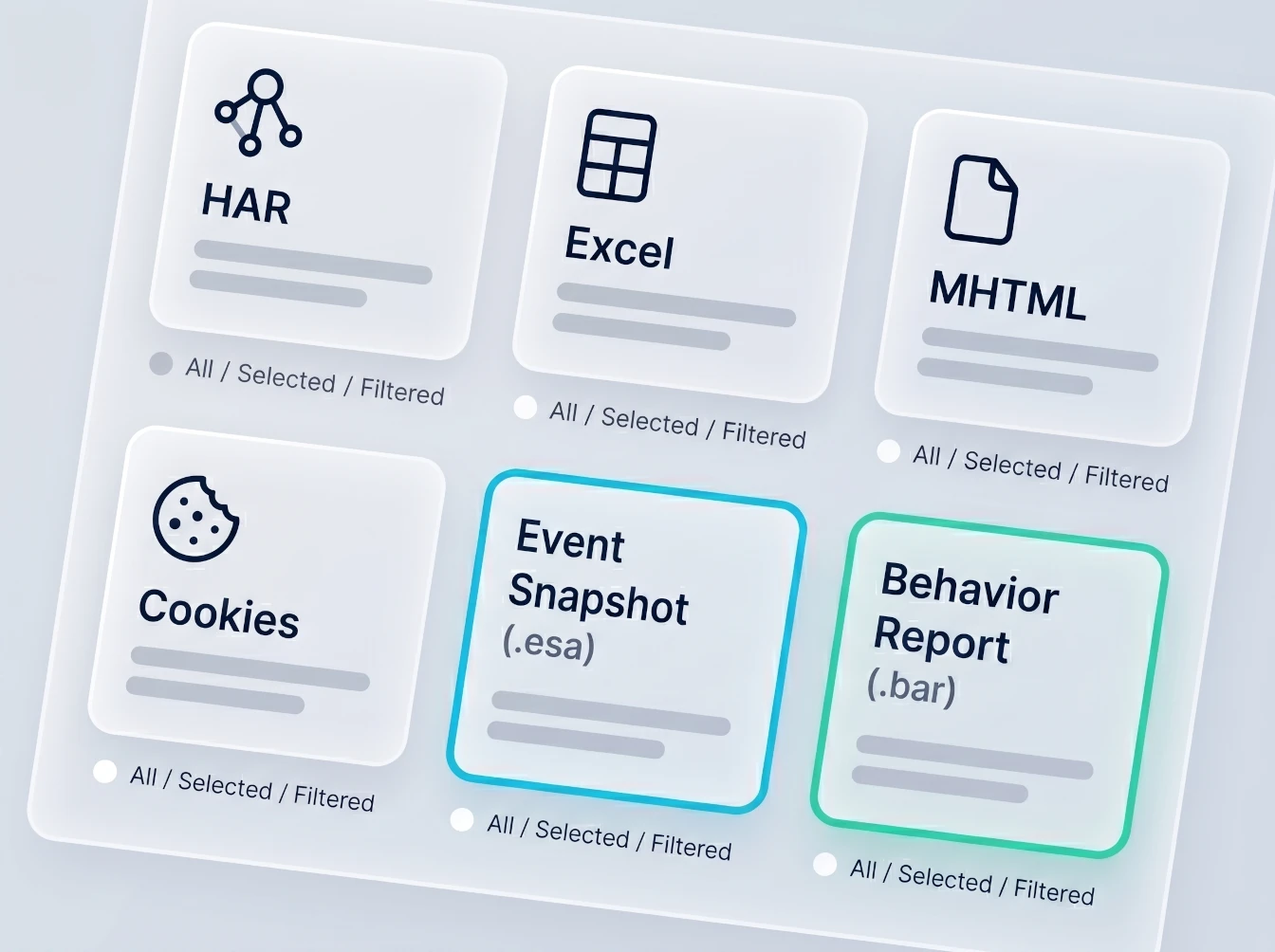
All, selected, or filtered.
HAR, Excel and the console-log export each ask you one question first: how much of the capture do you want in the file? Hand off exactly what's relevant, never more.
All Events
The complete capture. Useful when you want the recipient to have the full picture and the whole timeline.
Selected Events
Just the rows you clicked or shift-selected in the grid. Surgical. Perfect for "look at these three requests".
Filtered Events
Whatever the active grid filter is showing. Combine multiple column filters and export only the intersection.
Every export format webQsee speaks.
| Format | Description |
|---|---|
| HAR, All HTTP Events | Standard .har file with every captured HTTP request and response. Compatible with any HAR viewer. |
| HAR, Selected HTTP Events | Same standard HAR, restricted to the HTTP rows you selected in the grid. |
| HAR, Filtered HTTP Events | HAR restricted to whatever the current grid filter is showing. |
| Excel, All Events | .xlsx workbook with HTTP, console, WebSocket and SSE events together on one sheet, one row per event. |
| Excel, Selected Events | Excel workbook restricted to the selected rows. |
| Excel, Filtered Events | Excel workbook restricted to the current filter result. |
| Console events, All / Selected / Filtered | A single JSON file with just the console output, including levels, arguments and call stacks. Handy for feeding a log pipeline. |
| Event Snapshot | Creates a fresh .esa from the current capture, with a visible-area or full-page screenshot taken at that moment, plus cookies and environment metadata. Learn more. |
| Inspected Page MHTML extension only | Single-file .mhtml archive of the inspected page itself, DOM, styles, inline resources. |
| Inspected Page Cookies extension only | JSON dump of the cookie jar for all resource URLs the inspected page requested. |
| Behavior Archive (BAR) | .bar file with the full session replay: video, network, console, WebSockets, SSEs and response bodies. Exported from the Gallery. Learn more. |
Choose by destination, not by habit.
Quick decision guide:
- Handing off to another webQsee user → Event Snapshot (or BAR if you need replay).
- Need spreadsheet pivots / non-engineer review → Excel.
- Feeding a legacy tool or external HAR viewer → HAR.
- Need to reproduce the rendered page offline → MHTML.
- Want a full replay with video → BAR.
- Feeding a log pipeline or a grep → console events JSON.
Local-first by default
Every export writes to your local downloads folder. No server round-trip, no upload, the file leaves your machine only when you decide to share it.
Large archives are assembled on disk first and handed to the browser complete, with a movable progress overlay while they build, so a long export cannot be silently truncated. Exports work in the extension and at view.webqsee.com alike; only the two Inspected Page exports are extension-only, because they need a live debugger session on a real tab.
Stop guessing. Start webQseeing.
Add webQsee to Chrome or Edge in one click. Recording and replay are free, no signup needed. Upgrade when you need AI analyses, cloud sharing, S3 storage and Pro-grade tooling.
Works in Chrome 103+, Edge 103+ and most Chromium-based browsers. Install instructions.