HAR in. HAR out. Selectively.
HAR is the long-standing standard for exchanging browser network traffic. webQsee speaks it in both directions: export only the requests you actually care about instead of shipping the entire trace, and import a HAR that somebody else captured in DevTools, Charles, Fiddler or Postman.
All features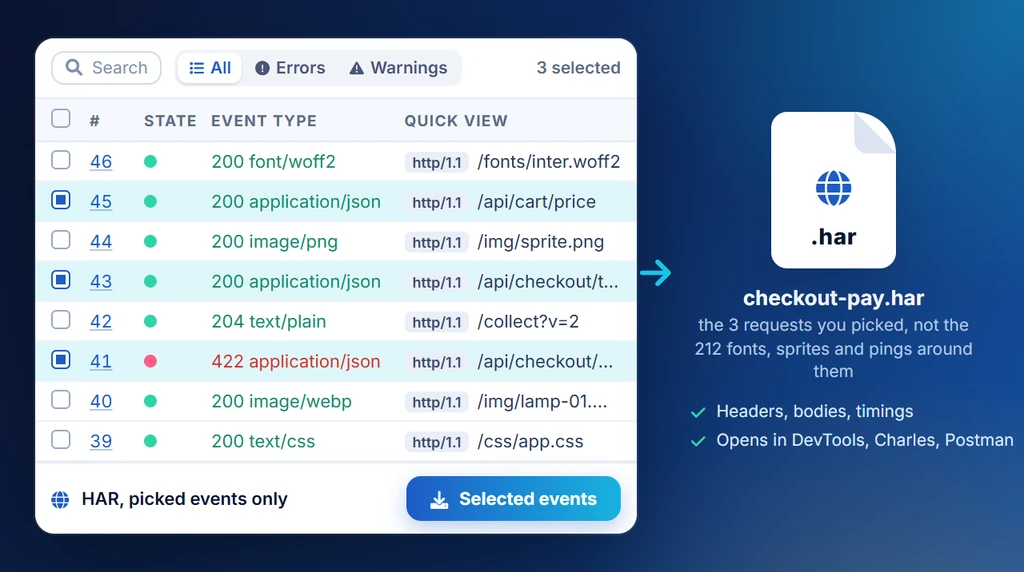
The lingua franca for browser network traces.
HAR, HTTP Archive, is a JSON-based file format originally designed for web performance traces. It's universally supported: Chrome DevTools, Firefox DevTools, Safari Web Inspector, Postman, Charles Proxy, Fiddler, hundreds of analysis tools all read and write it.
If a downstream tool expects HAR, webQsee gives you HAR, with the same structure, the same fields, the same compatibility. No surprises on the receiving end.
What HAR contains
- HTTP requests and responses
- Headers, query strings, POST bodies
- Response payload (text and base64)
- Timing data (connect, send, wait, receive)
- Cookies per request
- Page metadata
Export only what's interesting.
Chrome DevTools' "Save all as HAR" gives you everything in the Network panel, every .woff2 font, every .png sprite, every analytics ping. That's a few hundred kilobytes of noise around the one request you actually wanted to share.
webQsee's HAR export comes in three flavours: all HTTP events, selected HTTP events, or filtered HTTP events. Filter to status >= 400, select the three rows that matter, hit export, you ship 8 KB of evidence instead of 800 KB of noise.
Selective by design
- HAR, All HTTP Events, the DevTools-equivalent dump
- HAR, Selected HTTP Events, only the rows you clicked
- HAR, Filtered HTTP Events, only what matches your current grid filters
Drop somebody else's HAR into webQsee.
A customer emails you a HAR from Chrome DevTools. A colleague exports one from Charles. A support ticket has a .har attached from a browser you don't even have installed. Drag it into the webQsee main window and it becomes a normal capture: the analyzer grids fill up, your error-detection rules run over it, and you can re-export it in any of webQsee's formats.
This is the cheapest way to get someone else's traffic under a proper analyzer. They need no extension, no account and no instructions beyond "right-click the network panel, Save all as HAR".
All import formatsWhat happens on import
- The HAR is converted into an Event Snapshot
- Requests, responses, headers and bodies come across
- The exporting tool is recorded as the capture's creator
- The capture lands in your Local Gallery like any other
- Free, no account needed, no length limit
HAR carries no console output, WebSocket frames or screenshots, so an imported HAR is exactly as rich as the format allows, no more.
HAR is the floor. BAR is the ceiling. ESA is the sweet spot.
Pick the format that matches both your recipient's tooling and the richness you actually need.
| Format | Contents | Best for |
|---|---|---|
HAR .har | HTTP requests and responses only | Existing tooling that already speaks HAR (Postman, Charles, perf analyzers), and the only format that travels into webQsee from elsewhere. |
Excel .xlsx | HTTP, console, WebSocket and SSE events, one row each on a single sheet | Non-engineer review, pivoting, sorting in a spreadsheet. |
ESA .esa recommended | Every captured event plus response bodies, a screenshot, cookies and full environment metadata | Filing a bug ticket to anyone who also has webQsee (free or paid). The natural successor to HAR. |
BAR .bar | Every captured event plus response bodies and a synchronized video of the tab | The complete handoff. Open it in webQsee and watch the bug happen. |
Picking between HAR and ESA
If your recipient also runs webQsee, send them an ESA. Same compactness as HAR, far richer payload, drag-and-drop import. Reach for HAR only when the receiving tool is something else (DevTools, Charles, Postman, an internal performance analyzer).
Stop guessing. Start webQseeing.
Add webQsee to Chrome or Edge in one click. Recording and replay are free, no signup needed. Upgrade when you need AI analyses, cloud sharing, S3 storage and Pro-grade tooling.
Works in Chrome 103+, Edge 103+ and most Chromium-based browsers. Install instructions.