Quick analysis: one question, one answer
One API call from the browser, no helper and no agent. It sends a budgeted excerpt of the recording and tells you exactly what it left out.
Estimated time: 15 min · Last reviewed: 2026-08 · Difficulty: Easy
Available now in the browser, and in the extension this autumn.
The AI analysis, the three webQsee AI strengths, Deep Inspection and the new plans are live today in webQsee web at view.webqsee.com: open a recording there, analyse it, and buy a plan or a booster if you want one. The Chrome and Edge extensions are in review and follow this autumn. Your recordings, your gallery and your account are the same in both, so nothing you do now has to be done again.
Before you start
- One recording in your webQsee gallery
- Nothing else, if you use webQsee AI: no key, no endpoint, no model to choose. You do pick a strength, and Standard is already selected
- Or, for BYO AI, an Anthropic API key or any OpenAI-compatible endpoint (including one running on your own machine)
- No helper needed. This is the variant that works with nothing else installed, and the one the free plan includes
- A webQsee account: your plan includes a number of analyses and the count is kept against it, and a free account gets ten BYO AI analyses once, and five on webQsee AI to claim. With BYO AI, follow-up questions inside an analysis are unlimited and never counted; with webQsee AI each analysis allows 3 to 10 of them, and 6 or 3 on the two stronger strengths. See what it costs
Step 1, connect a model
Ask, and skip this step entirely
Press Analyze on any recording, choose Quick analysis, and type a question. With webQsee AI there is nothing to set up first: no settings form opens, because there is no key to paste and no address to find. Your plan includes a number of analyses each month.
Sanity check: the panel opens straight on the question box, and the line above it says the excerpt goes to webQsee.Switch the engine without leaving the dialog
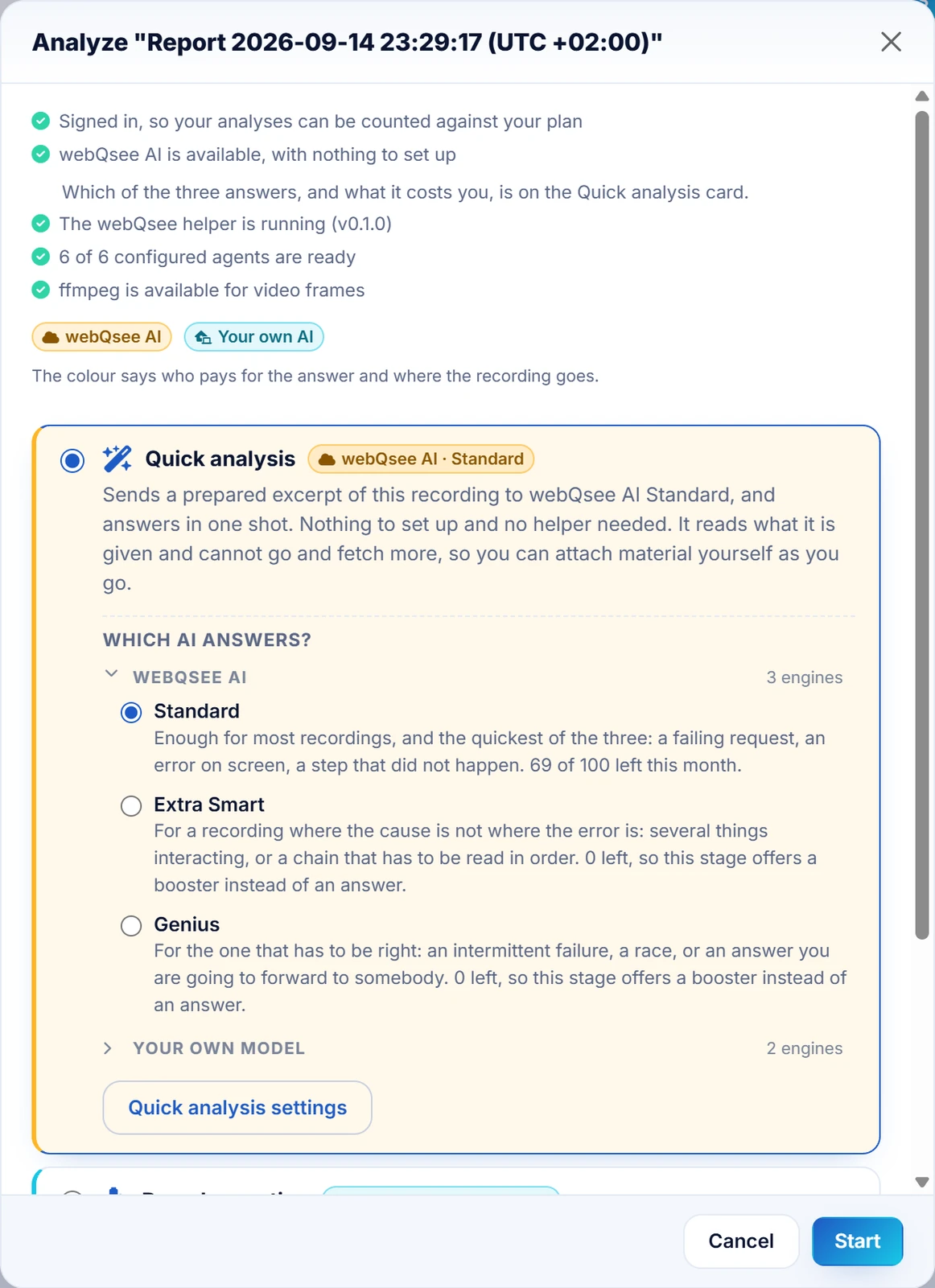
Selecting the Quick analysis card opens a Which AI answers? row inside it, grouped by who pays: webQsee AI with its three strengths, and under BYO AI whatever you have configured. Each entry says what it is and what is left of it, and picking one repaints the card in that engine's colour, so the choice is made and visible before you press Start. You only need the settings if the engine you want is not configured yet, and the card has its own button for that.
Sanity check: the card's chip at the top changes with your pick, from amber webQsee AI to cyan BYO AI or the other way round. Colour is never the only signal: the chip names the engine too.Or open the settings and bring your own model or agent
Quick analysis settings on the card, or the gear icon in the analysis panel, opens the settings over the dialog rather than in a new tab, and what you change there is in the card the moment you close it. Three choices, and which one you want depends on whether the recording may leave your machine at all.
- webQsee AI, in three strengths. Nothing to configure. The excerpt goes to webQsee and on to a model; webQsee counts the analysis and keeps no part of the request. Standard is included in your plan up to a monthly number and is enough for most recordings. A free account gets five Standard analyses on the house, once, so that trying it costs nothing and needs no key; the panel offers them the first time you have none left; Smart and Genius are bought as boosters: a stronger model, and the largest we host, for escalating a question Standard did not settle. You pick a strength on the cards at the top of the settings, per analysis, and each card shows what you have left.
- Anthropic. Paste an API key. The default model is a current Claude model.
- OpenAI-compatible endpoint. Any server speaking that API: Ollama, LM Studio, vLLM, a gateway of your own, or a hosted provider. You give the base URL and the model name.
Sanity check: for an OpenAI-compatible endpoint the URL ends in/v1, for examplehttp://localhost:11434/v1.Decide where the recording is allowed to go
An address on your own machine keeps the recording on your own machine. The settings form says so under the endpoint field, and the sentence above the question box repeats it every time you ask, because "runs locally" and "is posted to a provider" are two clicks apart and look identical otherwise. With webQsee AI that sentence names webQsee, because with that option the destination is us.
Sanity check: the line above the question box names the destination you expect, with a shield icon if masking is on and a warning triangle if it is not.Save
The API key is stored in the browser's own extension storage and never reaches the webQsee backend, the helper, or anything else. It is sent to the endpoint you named and nowhere else.
Sanity check: the settings form closes and the question box is enabled.
Step 2, ask well
The quick analysis sees a selection, not everything. What you ask decides how much of that selection is useful, so name the moment and the symptom rather than asking for a summary.
Weak questions
- "What is wrong here?"
- "Summarise this recording."
- "Are there any errors?"
Questions that get answers
- "The Add to cart button did nothing at 0:14. What actually happened?"
- "Why did the checkout call return 500 and what did it send?"
- "The page went blank after login. What was the last thing that succeeded?"
Step 3, read the coverage box
Above the answer there is a box that says what the model was actually given: how many events were in scope, how many response bodies and video frames were sent, and what was dropped to stay inside the token budget. Read it before you read the answer.
It also states whether your own error-detection rules took part. There are three distinct states and they mean different things:
- Your rules were applied. Some verdicts in the answer are yours, not webQsee's.
- You have no rules configured. Nothing was judged by them, and that is not a gap.
- Your rules could not be reached from this surface. That one is worth acting on.
Step 4, follow up and attach
The conversation stays open. A follow-up replays the same excerpt, so the model still has the material and you are not paying to re-send it in a new conversation.
If the answer needs something the excerpt did not include, attach it: pick an extra response body or an extra video frame from the picker and it travels with your next question. A meter shows what the attachment costs against your token budget, counting the conversation so far.
Step 5, keep it
Press Save with the recording and it is stored inside the recording, together with the conditions it was made under: which model answered, whether masking was on, whether your own rules took part. Those conditions are what make a finding reproducible later, which is why they travel with it. Name it in the field beside the button if you want the stored list to lead with something other than your first question.
The row below offers Markdown, Jira markup and Print / PDF, for the copy that goes to somebody who does not have webQsee. Both rows wait until the answer is in.
Troubleshooting
| What you see | What it usually is |
|---|---|
| "No API key configured" | The key is stored per browser profile. If you switched profile or reinstalled the extension, enter it again. |
| The request is refused by the browser | A local endpoint usually needs to allow the extension's origin. Ollama and LM Studio both have a setting for it. |
| The answer stops mid-sentence | It hit its own length limit. The panel says so first, above the other notes. Raise the token budget in the settings, or ask a narrower question. |
<<redacted>> in the answer | Masking is on, which is the default for a cloud endpoint. It means a value was sent and was masked on the way out, not that none was present. Switch it off in the settings if the analysis needs the value, or ask the model to name which single value it needs. |
| The findings cite rows you cannot find | The numbers are the analyzer's # column for the same recording. If they do not line up, you are looking at a different recording than the analysis was made on. |
Next
Stop guessing. Start webQseeing.
Add webQsee to Chrome or Edge in one click. Recording and replay are free, no signup needed. Upgrade when you need AI analyses, cloud sharing, S3 storage and Pro-grade tooling.
Works in Chrome 103+, Edge 103+ and most Chromium-based browsers. Install instructions.